
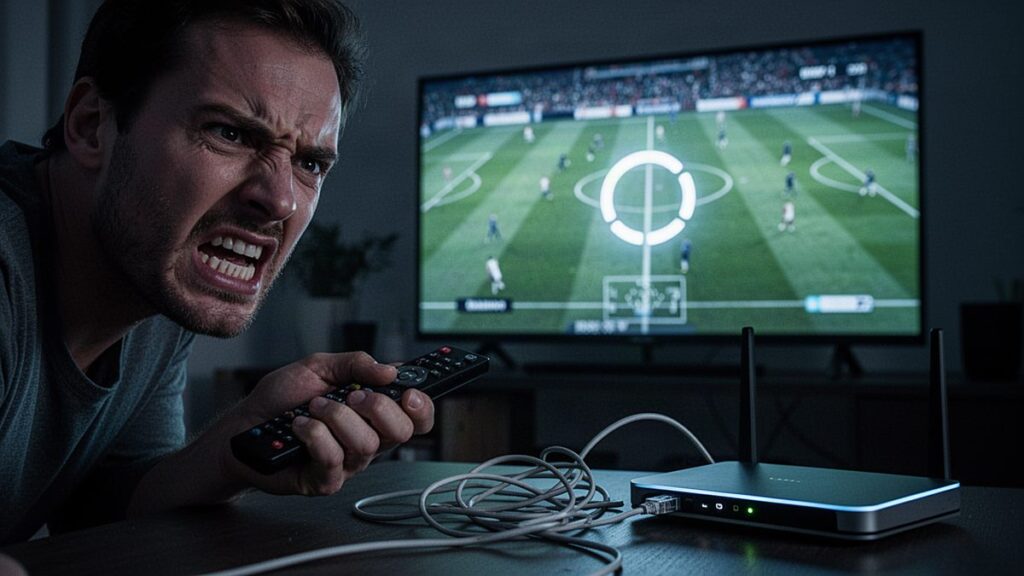
IPTV buffering is usually caused by your home network rather than your broadband plan. Weak Wi-Fi, an overloaded streaming stick or an unreliable powerline adapter explain most freezing. To stop IPTV buffering, connect the device by Ethernet, restart it, switch the player’s decoder and test your speed on the same device. If streams fail only at the same times each week, your internet provider may be responsible.
In brief: connect a cable if you possibly can. Aim for roughly 15 Mbps per HD stream and 25–30 Mbps per 4K stream, measured on the television device itself. Restart the router and device, clear the application cache and restrict the guide to the countries you watch. If buffering affects only one channel, the source is responsible; if it affects everything at kick-off, examine your connection or provider.
Buffering, freezing and lag: what is the difference?
These terms are often used interchangeably, but they indicate different causes. Buffering means the player pauses and displays a loading symbol while waiting for data. Freezing means the picture stops, frequently while the sound continues. Lag usually describes slow channel changes or a stream running considerably behind the live broadcast.
Buffering almost always reflects data arriving too slowly, whereas freezing with continuing sound usually indicates a decoding problem on the device. Sluggish menus suggest an underpowered device or an oversized programme guide. Identifying which symptom you have eliminates a great deal of guesswork.
Diagnostic table: symptom, cause and fix
Begin here. Find the row matching what you see, then work through the suggested remedies in order.
| Symptom | Likely cause | Fix |
|---|---|---|
| Buffering on every channel, all day | Weak Wi-Fi or slow line | Use Ethernet, move the router, test speed on the device |
| Buffering only in the evening | Network congestion at peak time | Wire the device, lower quality to HD, test on another network |
| Fails exactly at kick-off, fine otherwise | Possible ISP blocking or heavy peak load | Compare on mobile data; check the provider (see below) |
| Only one channel buffers | Problem with that channel’s source | Try the backup or FHD/HD version; report it to support |
| Sound plays, picture freezes | Decoder issue on the device | Switch between hardware and software decoding |
| Stutters only in 4K | Not enough bandwidth or a weak device | Use FHD instead, or upgrade the device and connection |
| Guide and menus are slow | Too much EPG data for the device | Limit guide countries, shorten guide days, clear cache |
| Channels will not load at all | DNS, expired login or wrong URL | Check login details, restart router, try other DNS |
| Buffering started after an app update | App settings reset or new bug | Clear cache, re-check settings, try another player |
Check your speed the right way
Run a speed test on the device you actually watch on, not on a phone beside the router. A phone near the router reveals what your broadband line can deliver, whereas the television stick behind the screen reveals what genuinely reaches the player.
As a practical guide rather than a guarantee:
- SD: about 5 Mbps per stream.
- HD and FHD: about 10–15 Mbps per stream.
- 4K: about 25–30 Mbps per stream.
Add these figures together for every screen watching simultaneously, then leave spare capacity for other people in the household. Streaming services publish comparable figures, and Netflix’s speed recommendations offer a useful reference. In Germany, the Bundesnetzagentur’s Breitbandmessung application measures your line and can document a shortfall against your contract.
Speed alone does not tell the complete story. A test fluctuating between 80 and 5 Mbps is worse for live television than a consistent 25, so monitor stability as well as the headline figure.
Wi-Fi vs Ethernet vs powerline
The connection between your router and your television device causes more buffering than anything else, and the solution is often a cable costing a few euros.
| Connection | Stability | Typical issues | Best for |
|---|---|---|---|
| Ethernet cable | Excellent | Cable routing through the home | Live sport, 4K, main TV |
| Wi-Fi 5 GHz | Good at short range | Weak through walls and floors | TVs in the same room as the router |
| Wi-Fi 2.4 GHz | Variable | Crowded in flats, slower | Occasional SD or HD viewing |
| Powerline (dLAN) | Varies by wiring | Interference from appliances, split circuits | Where cables and Wi-Fi fail |
| Mesh Wi-Fi | Good if well placed | Extra hop adds delay | Large homes and several floors |
Ethernet
A cable eliminates interference, signal drops and neighbouring networks from the equation. Fire TV Sticks and Chromecasts require a small USB Ethernet adapter, while boxes such as the Nvidia Shield, Formuler and MAG include a port. If you watch football, this is the single most valuable change you can make.
Wi-Fi
If you must rely on Wi-Fi, connect to the 5 GHz band and position the router in open space rather than inside a cabinet. A stick plugged directly into the back of a television sits in a poor location, so use the HDMI extension cable supplied with it. In German and Dutch apartment buildings, the 2.4 GHz band is frequently congested by dozens of other networks.
Powerline adapters (dLAN)
Powerline adapters, often called dLAN in Germany after devolo’s product range, transmit network data through your electrical wiring. They are popular in older German and Austrian buildings with thick walls, although results vary considerably. Plug them directly into wall sockets rather than extension strips, and keep them away from refrigerators, washing machines and phone chargers. If adapters sit on different electrical circuits, speeds can decline sharply. The manufacturer’s own application, available from devolo’s website, shows the link rate between adapters.
Would you like a stream you can evaluate on your own connection? Try our free 24-hour TiviBridge trial without a card, and run the tests in this guide during a live match. If it performs well, our euro-priced plans start at €12 for one month, with nothing that renews automatically.
Fix the device before blaming the line
Restart properly
Unplug the router and television device for 30 seconds, then reconnect the router first. Android devices and Fire TV Sticks rarely restart completely when you press the power button, and a proper power cycle clears memory and often resolves stuttering by itself.
Clear cache and free storage
On Android TV and Fire TV, open Settings, then Applications, then your player, and clear its cache. Remove applications you never use, because sticks with little free storage slow down noticeably. Our Fire TV Stick guide shows where these settings are located.
Switch hardware and software decoding
Most players let you choose how video is decoded. Hardware decoding uses the device’s dedicated video chip and is usually smoother, while software decoding uses the main processor and sometimes handles unusual streams better. If a channel freezes while sound continues, change the decoder for that channel. In TiViMate, this option sits within the playback settings, and our TiViMate setup guide covers it.
Match the quality to the device
Older sticks may struggle with 4K HEVC streams even on a fast connection. If 4K stutters but FHD plays smoothly, use FHD on that television, since you lose very little on a 43-inch screen. Our page on 4K IPTV explains the hardware and speed that 4K genuinely requires.
EPG overload: the hidden cause of lag
The electronic programme guide can slow a device more than the video itself. A subscription with 25,000+ channels across 60+ countries carries a substantial amount of guide information, and loading all of it on a small stick consumes memory and processing power until menus begin to crawl.
Restrict the guide to the channel groups you actually watch and hide countries you never use. Reduce the number of days the guide stores, and schedule it to update once daily rather than at every start-up. Most players, including TiViMate and IPTV Smarters Pro, provide these options in their EPG settings.
DNS: when channels will not load at all
DNS translates server names into numerical internet addresses. If your provider’s DNS is slow or unreliable, channels may fail to start, or the application may display connection errors while other applications function normally.
Switching your router or device to a well-known public DNS service can improve slow start-up, although it will not accelerate the stream once playback begins. If your provider has blocked a domain by court order or through a body such as Germany’s CUII, that is a signal about the service rather than something to circumvent. Our article on IPTV legality in Europe explains why. This is general information, not legal advice.
Check the router and the rest of the household
Your router divides its capacity between every device in the house, and a single large download can occupy most of the line for a while. Before blaming the IPTV service, examine what else is running.
- Games consoles download substantial updates, often during the evening.
- Cloud backups from phones and laptops can upload for hours and slow downloads as well.
- Additional streams in 4K on a second television consume a large share of a modest connection.
- Older routers may struggle with numerous devices simultaneously, even on fast fibre.
Many routers, including the FRITZ!Box that is common in Germany, allow you to prioritise one device. Give the television device priority so it receives bandwidth first when the line is busy. Also confirm that the router’s firmware is current, because provider routers usually update automatically whereas purchased routers may not.
Mesh systems deserve a brief mention as well. They extend coverage across large homes, but each wireless hop between satellites adds delay and reduces throughput. If your television sits beside a mesh satellite, connect the two with a short Ethernet cable where the satellite provides a port, because that combination usually performs far better than a purely wireless link.
When your streaming stick is simply too old
Early Fire TV Sticks and older Android boxes were not designed for today’s applications and channel lists. If your device is five or more years old, it may be the bottleneck even on an excellent connection.
Warning signs include menus that take seconds to respond, applications closing unexpectedly, and 4K channels that never play smoothly. A factory reset sometimes helps temporarily, but a current stick or box costing around €60–80 is often the genuine solution. Our guide to the best IPTV box for Europe compares current options, and our IPTV app comparison suggests lighter players for older hardware.
Is my internet provider blocking IPTV?
Possibly, although congestion is considerably more common. Blocking and throttling leave recognisable patterns, and these are the signs to look for.
- Failures exactly at kick-off times. Streams work all week but fail at 15:30 on a Bundesliga Saturday or 21:00 on a Champions League evening.
- Works on mobile data, fails on home broadband. The same device and login behave differently on two networks.
- Connection errors rather than slow playback. Blocking usually prevents a stream from starting, whereas congestion usually causes pauses during playback.
- Every channel fails simultaneously while other streaming applications play normally.
To investigate, connect the television device to your phone’s mobile hotspot and try the same channel. If it plays on mobile data but not at home, the problem lies with your home connection, so contact your provider’s support and our team with the times it happened.
Some people use a VPN to establish whether throttling is involved. It can help in particular cases and cause problems in others, and our guide to using a VPN for IPTV in Europe explains when it is worth trying.
When the problem is the channel, not you
If one channel buffers while every other channel plays smoothly, the problem lies at the source. Try the alternative version of that channel if the list offers one, such as HD instead of FHD, then tell your provider which channel, at what time and on which device.
A reliable provider resolves source problems quickly and tells you honestly when it cannot. If buffering affects everything and you have excluded your home network, the provider’s capacity may be the issue, which is worth knowing before you renew. Our guide to choosing an IPTV provider in Europe describes what to check.
Checklist before a big match
- Restart the router and television device an hour before kick-off.
- Connect by Ethernet, or confirm you are using 5 GHz Wi-Fi.
- Pause large downloads, game updates and cloud backups.
- Open the channel ten minutes early to confirm it plays.
- Know the backup version of the channel in case the main one stutters.
- Keep the decoder setting that works best for sport.
How TiviBridge helps
TiviBridge streams in 4K, FHD and HD, so you can match the quality to your connection. Our support team answers on WhatsApp at any hour: send the channel, the time, your device and your internet provider, and we will help you identify the cause. The device setup guides include recommended player settings for smoother playback.
Frequently asked questions
Why does my IPTV keep buffering?
The most common cause is a weak Wi-Fi connection between the router and the TV device. Other causes include an old or overloaded streaming stick, too much guide data, congestion at peak times and problems with a single channel's source. Connecting by Ethernet and restarting the router and device fixes a large share of buffering complaints.
What internet speed do I need for IPTV?
As a practical guide, allow about 10 to 15 Mbps for each HD or FHD stream and 25 to 30 Mbps for each 4K stream. Measure speed on the TV device itself, not on a phone next to the router. A steady connection matters more than the headline figure, so watch for large swings between tests.
Is my internet provider blocking IPTV?
Possibly, but congestion and Wi-Fi are more common causes. Signs of blocking include streams failing exactly at kick-off times, connection errors rather than slow playback, and the same channel working on mobile data but not on home broadband. Test with your phone's hotspot, note the times, and contact both your provider and your IPTV support.
Are powerline adapters good for IPTV?
They can be, but results vary with your wiring. Powerline adapters, often called dLAN in Germany, work best plugged straight into wall sockets on the same electrical circuit, away from large appliances. In older buildings with thick walls they are often better than Wi-Fi. An Ethernet cable is still the most reliable option.
Why does IPTV freeze but the sound keeps playing?
This usually points to a decoding problem on the device rather than a slow connection. Open the player's settings and switch between hardware and software decoding for that channel. If only 4K channels freeze, the device may not handle 4K HEVC smoothly, so try the FHD version or a more capable streaming box.
Can too many channels slow down IPTV?
Yes, mainly through the programme guide. Loading guide data for every country on a small streaming stick uses memory and makes menus slow. Hide channel groups you never watch, reduce the number of guide days and set the guide to update once a day. Playback itself is not affected by the size of the list.
Ready to watch 25,000+ channels?
Order on WhatsApp and get your login in under 15 minutes. 7-day money-back guarantee.
Related articles
VPN for IPTV in Europe: When It Helps and When It Hurts
A VPN can steady IPTV on a throttled or public network, but it is not a legal shield and it can cost…
September 5, 2026Best IPTV Box 2026: Streaming Devices Compared for Europe
Which streaming device should run your IPTV? We compare Fire TV Sticks, Google TV, Nvidia Shield, Formuler, MAG, BuzzTV, Xiaomi and Apple…
September 4, 2026Best IPTV App 2026: 11 Players Compared for TV, Phone and PC
Which IPTV player suits your screen? We compare eleven apps, from TiViMate and IPTV Smarters Pro to IBO Player, Smart IPTV and…